BEPRO Space
BEPRO Editor
Cerberus
Login & Signup
Request Match Analysis
0
BEPRO Space
Basic
All Users
Comment on post videos
Let's learn how to add comments on the videos attached in posts
You can add comments at specific times in videos attached to posts.
By commenting directly at the moment when specific situations occur and communicating through these comments, more direct and intuitive communication becomes possible.
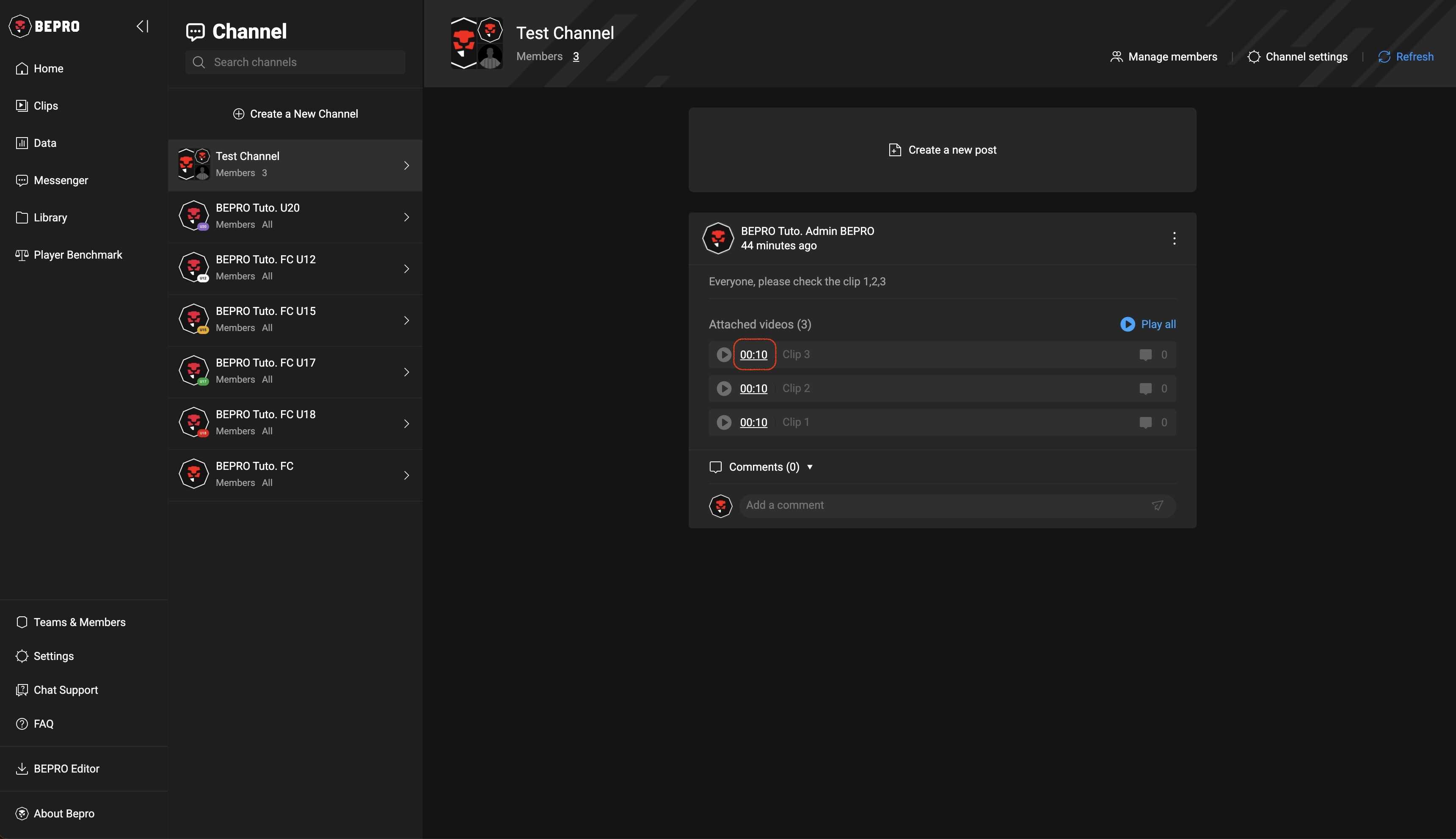
First, play one of the videos attached to the post.
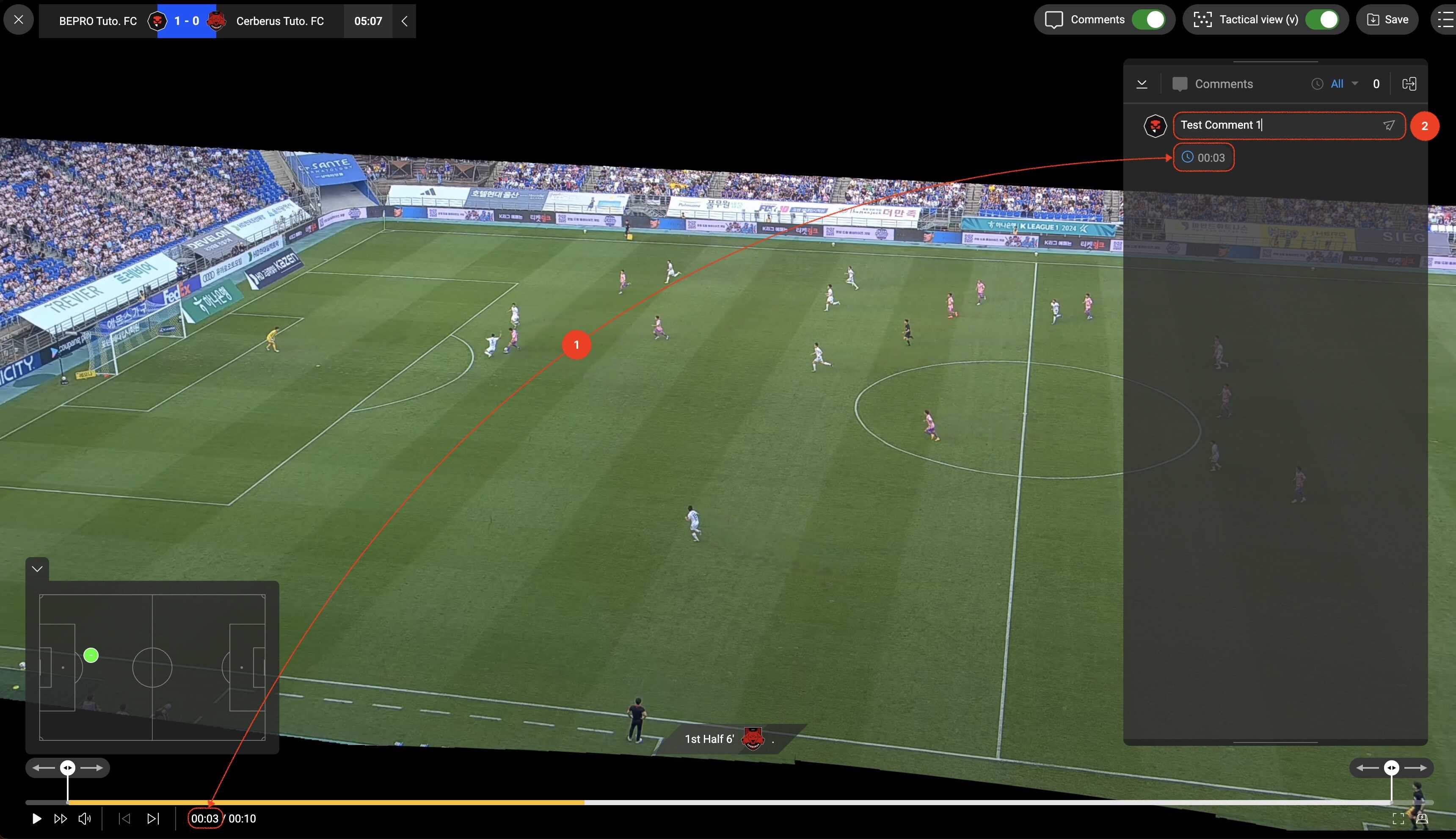
An input field for entering comments appears in the floating comment panel.
Below the input field, the video time where the comment will be entered is displayed, which changes according to the current playback point of the video.
As you watch the video, you can enter your comment at the desired point and complete the input.
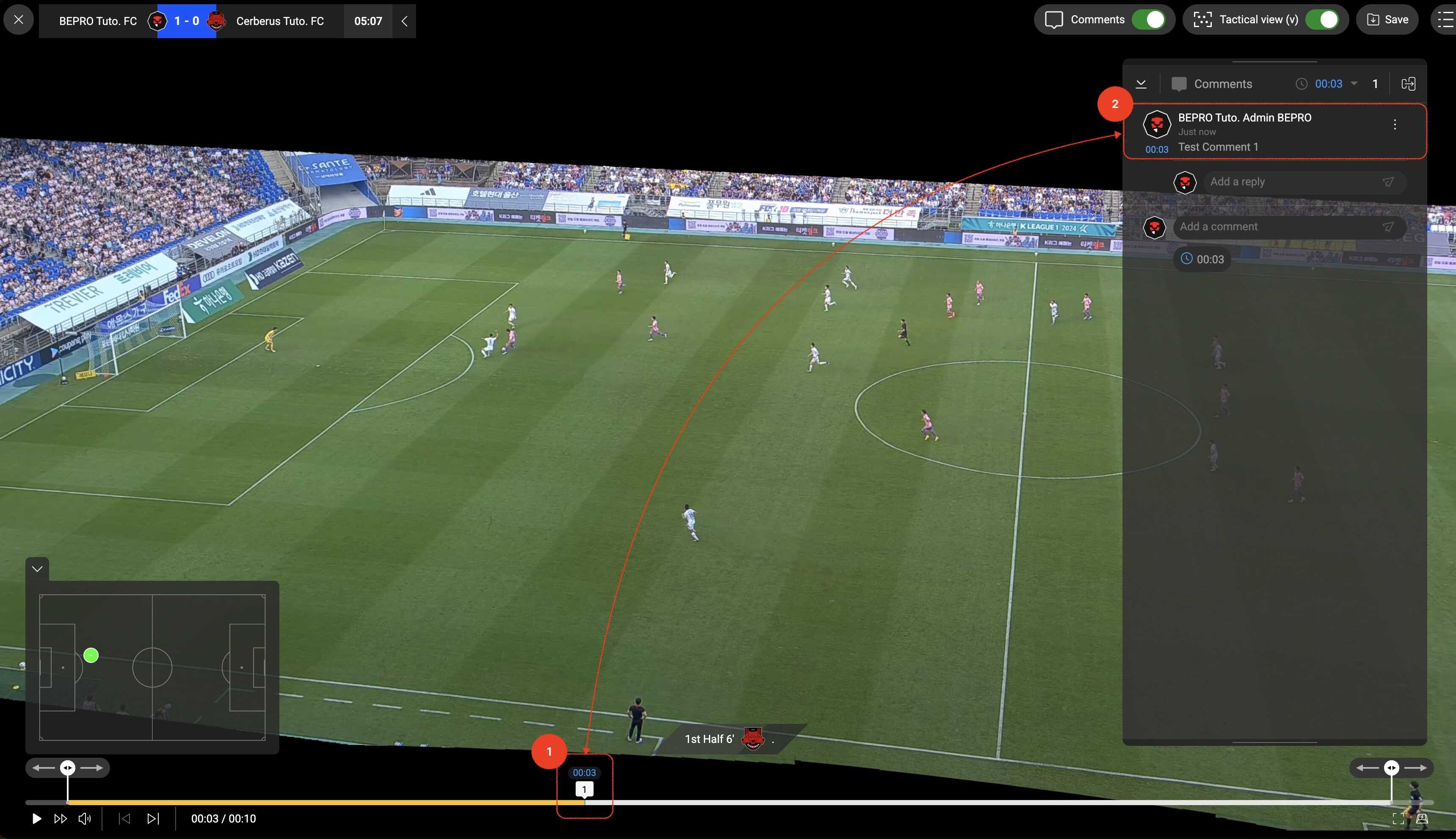
When you enter a comment, the comment position is displayed above the playback bar, and an item is added to the comment panel.
If the comment position is not displayed above the playback bar, please close and restart the video.
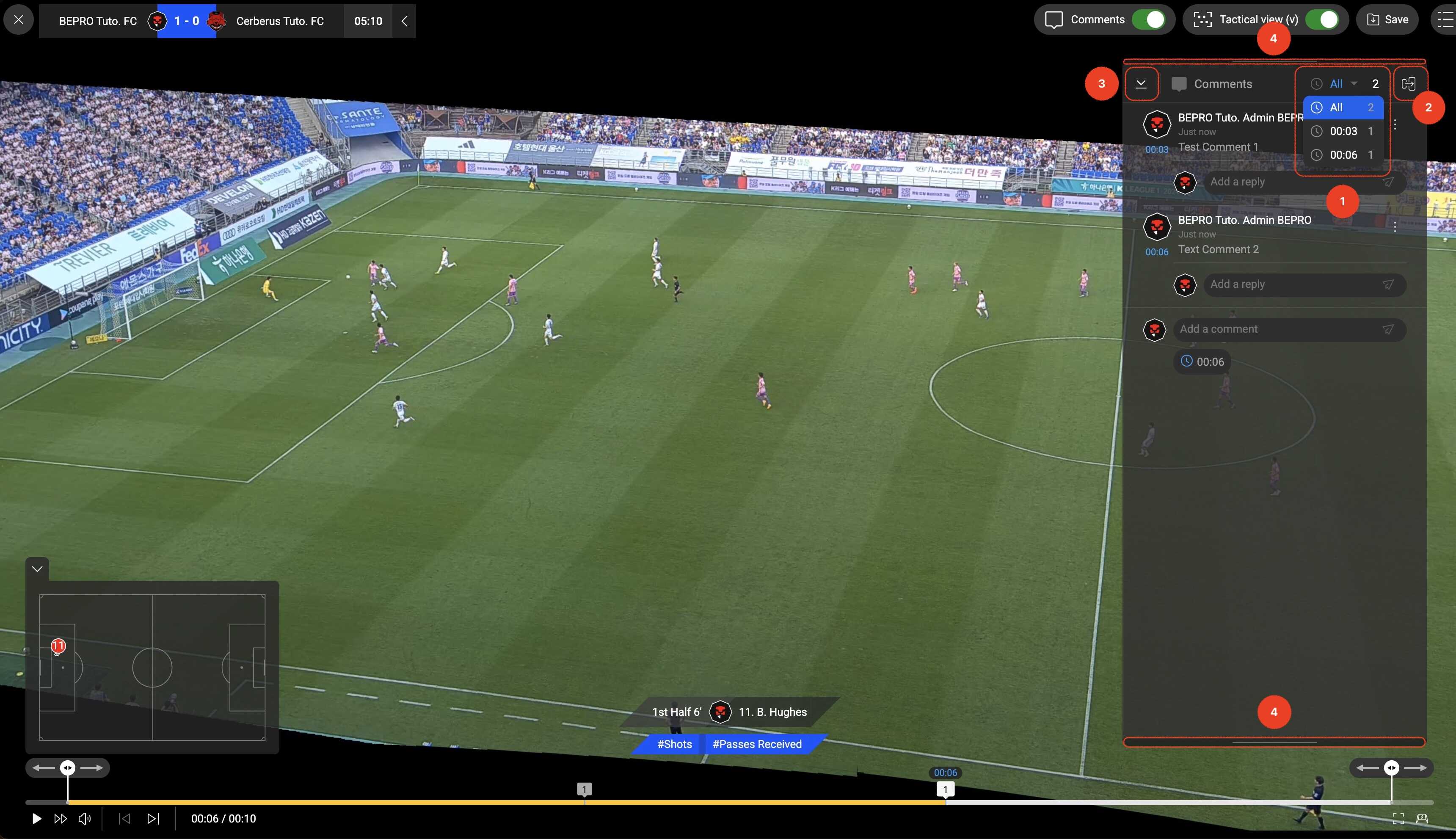
Let's look at some options in the comment panel:
1. Comment time filterWhen there are multiple comments, you can filter comments by time.
2. Convert floating panel to side panelIf you want to see the panel a bit larger, you can switch to a side panel.
3. Minimise panelIf you want to see the video larger, you can minimise the panel.
4. Panel resizing & movingWhen the panel is in a floating state, you can move the panel by dragging its position or adjust its size using the resize bars located at the top and bottom.
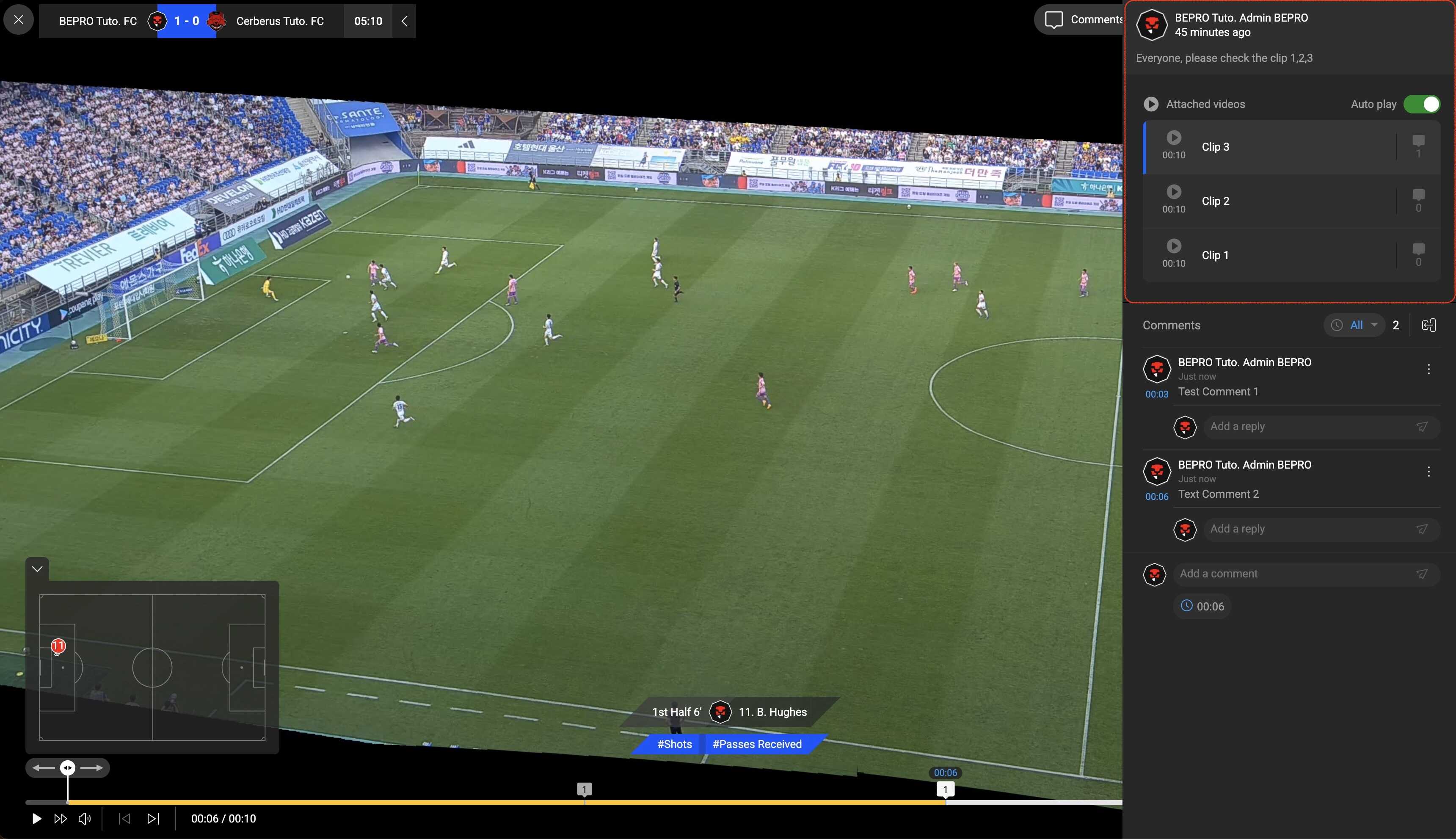
When the comment panel is switched to a side panel, you can see the post content along with a list of other videos attached to the post, and you can click on these videos to play different videos.